Everything General Grizzly can do
A tour of every tab, what it's for, and how to get the most out of it — from a five-minute chat question to a full prerequisite-mapped course.
Getting started
Everything lives behind seven tabs in the sidebar: Chat, Course Builder, Courses, Notebook, Manga, Study Tools, and Library. Every feature and every model is unlocked for every account (see Usage & points). Not sure where to start? Ask a question in Chat — it's the fastest way to see what General Grizzly can do.
Chat
A tutoring conversation, not a search box. Ask anything, and General Grizzly explains it at the grade level and teaching style you set — then turns that explanation into a mind map, a full study kit, or the start of a course with one click.
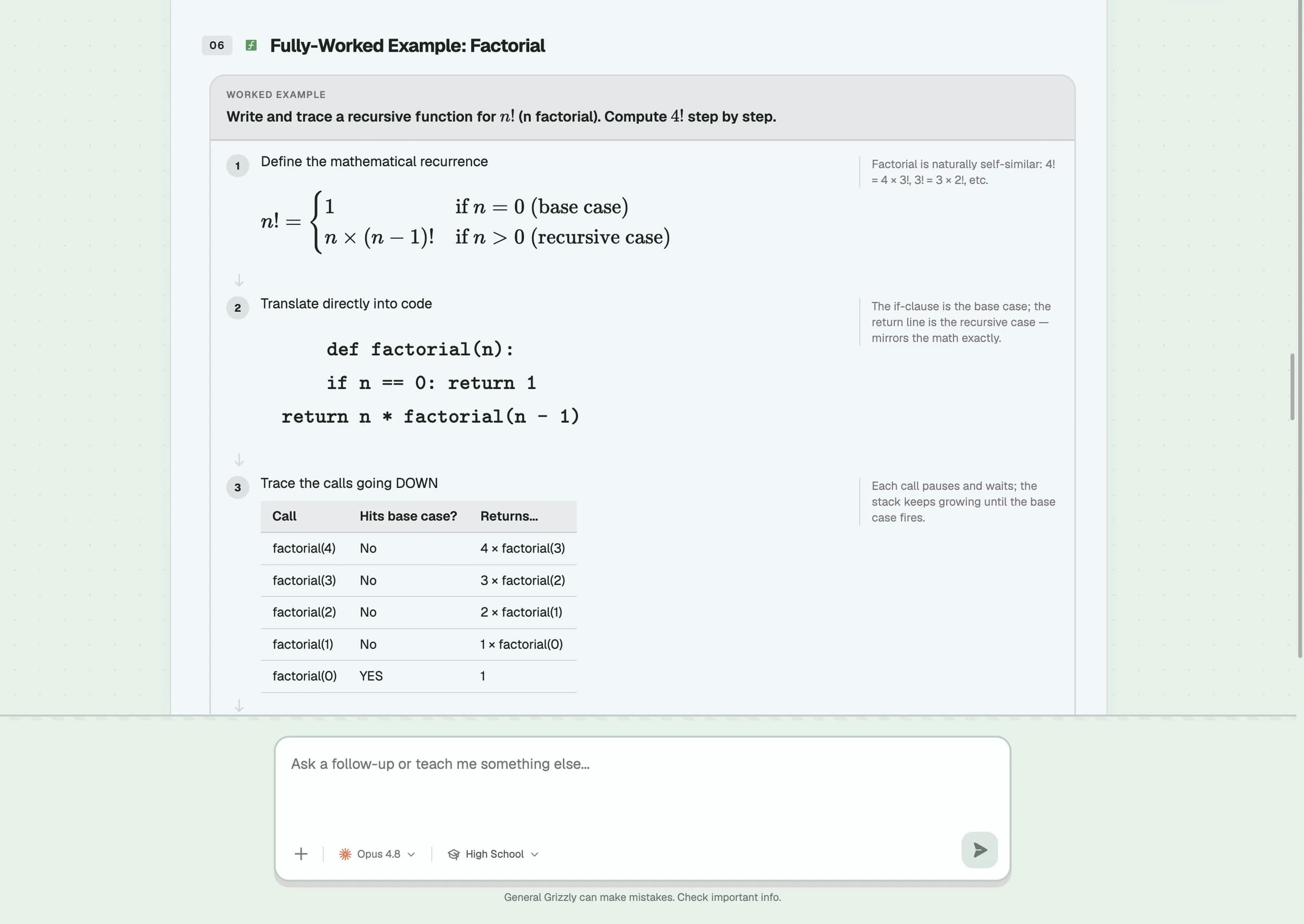
Grade level
Set from the composer bar (defaults to High School). Every explanation — vocabulary, formulas, depth — adapts to it, so the same question reads differently for a middle schooler and an AP student.
Teaching style
The STYLE control sets how Grizzly teaches — from calm and structured to more energetic — without changing what it teaches.
Model picker
Choose which AI model answers, shown with its provider's logo. Faster models answer quicker; larger models handle harder material — pick what the question needs.
Attachments
The + button lets you attach a file (a PDF, an image, notes) so Grizzly can answer using your own material instead of general knowledge.
“Study this”
Turn any lesson into a full study kit — guide, flashcards, quiz, and worksheet — in one tap. It opens straight into Study view, and is saved to your Library automatically.
Mind map
For lessons that support it, generate a visual mind map of the topic's structure — useful for seeing how ideas connect before you drill into flashcards.
Your draft is kept if you switch tabs mid-message and come back, so you never lose a half-typed question — it only clears on a full page reload.
Study kits & active recall
A study kit is the full package Grizzly builds around one topic — reachable by tapping “Study this” in Chat, checking a source or file in the composer and hitting “Study from…”, or opening a saved deck from your Library. It has five modes across the top, and you can jump between them at any time.
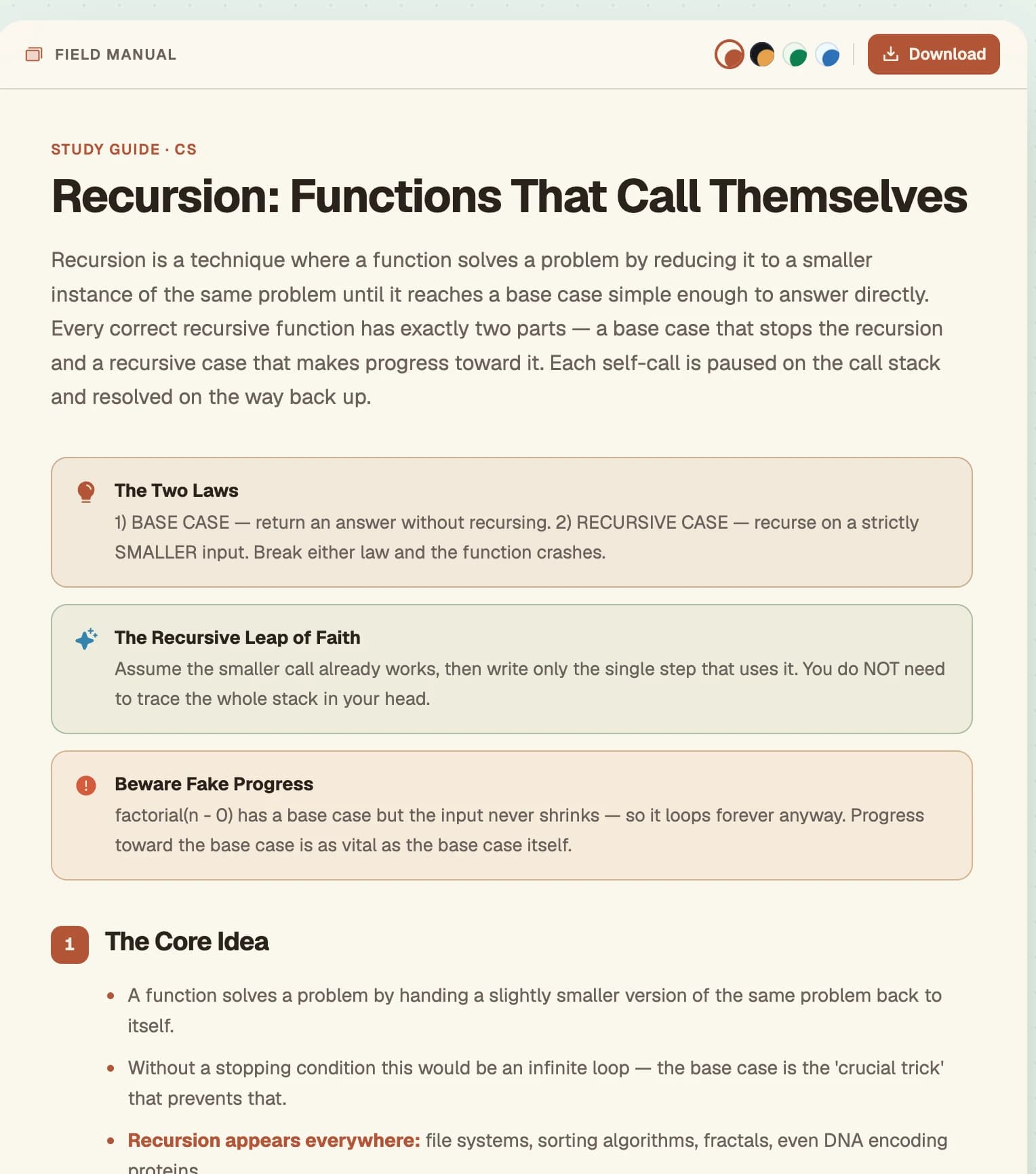
Guide
A structured written explainer of the topic, organized into numbered sections you can jump to.
Blurting
Switch to this tab, then write out everything you remember from the Guide with it out of sight — no peeking. Grizzly compares what you wrote against the guide and shows exactly what you covered and what you missed. Only unlocks once that kit has a Guide — if the tab looks greyed out, build the Guide first.
Worksheet
Practice problems for the topic. Every worksheet prints with a full answer key on its own page at the end, so you can check your work after finishing — not a reveal-per-question button that lets you peek early.
Flashcards
Front-and-back cards you flip through and rate, so cards you know well show up less and ones you're shaky on come back sooner.
Quiz
A graded multiple-choice / short-answer quiz, including chart- and graph-reading questions for topics where that matters (data, statistics, science).
Any mode you haven't built yet shows “tap to generate” instead of a blank screen — nothing builds until you ask for it, so you only spend usage on what you actually study.
Blurting and active recall are not the same thing, even though they work together. Blurting is a single write-from-memory exercise you run yourself, inside one study kit, whenever you want it. Active recall (the toggle in Course Builder, see below) is Grizzly proactively bringing a whole course's past units back for review on a schedule, without you having to ask.
Course Builder
A whole course for a whole subject, not just one topic. Grizzly lays the subject out the way a real course is laid out: units, sections inside each unit, and lessons inside each section, with a quiz closing every section, a test closing every unit, and a final test closing the course. Course Builder is where a course is made; every course you make lands in the Courses tab.
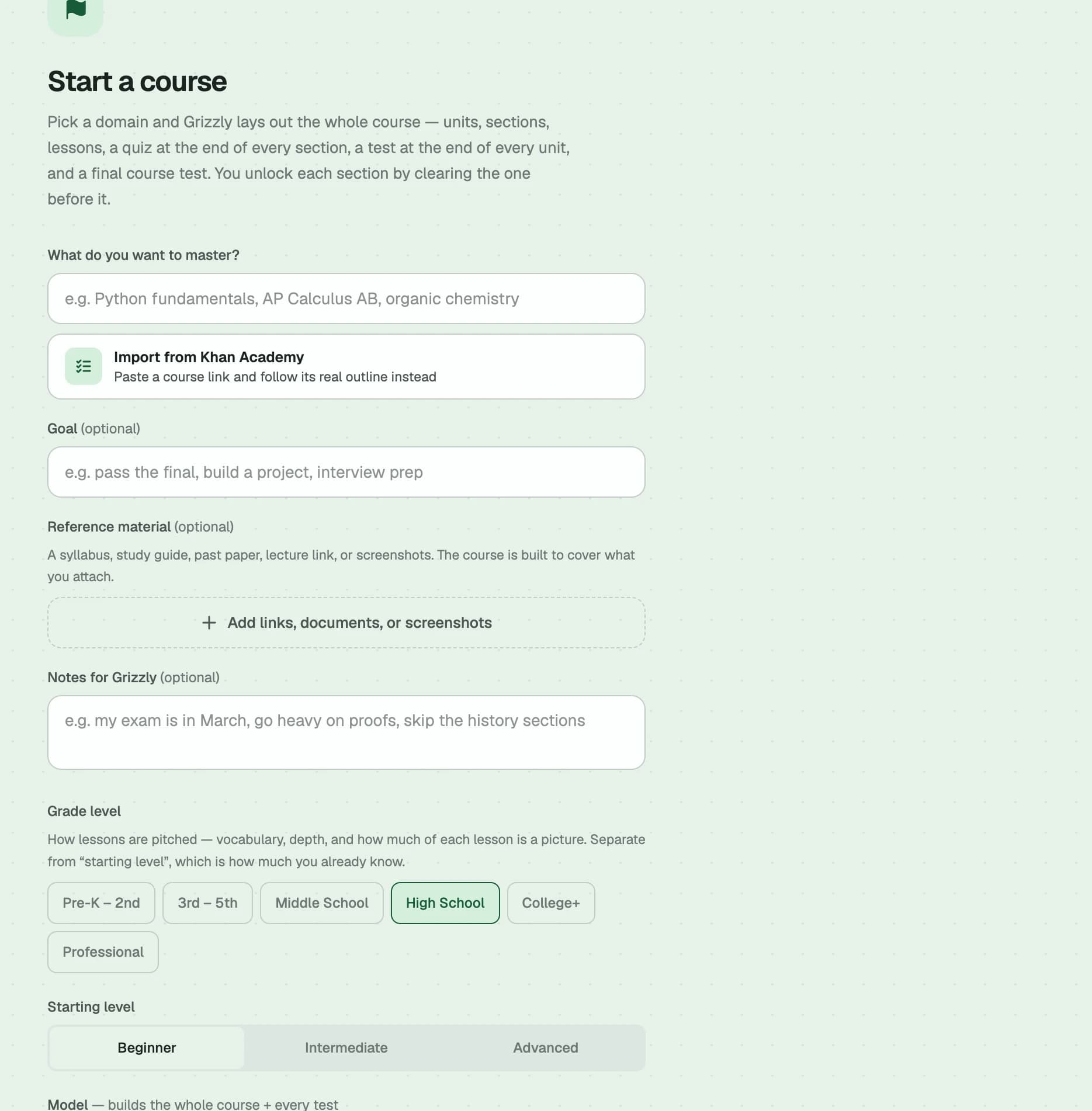
There are three ways to start one, and they all end in the same place.
Describe it
Name what you want to master and Grizzly designs the whole outline for it — the option to use for a subject that has no standard syllabus.
Pick a prebuilt one
The Courses tab ships a shelf of ready courses across Math, Science, History and Computer Science, grouped by grade level. Many carry a researched outline taken from the real curriculum. Hit Adapt on any of them and Course Builder opens with it loaded — you still choose the level, model and depth before it builds.
Import one
Paste a link to any public course page, or paste in a syllabus or table of contents, and Grizzly reads its structure. Then tick exactly which topics you want to bring in. There is no limit on how many you can take.
- 1Start from any of the three routes above. You can attach reference material — a syllabus, past paper, or study guide — and the course will be built to cover it.
- 2Grizzly runs a short placement check so it can skip whole sections you already know instead of assuming you're starting from zero.
- 3Work down the outline: open a unit to see its sections, and a section to see its lessons. Finish a section's lessons to unlock its quiz, clear every section to unlock the unit test, and clear every unit to unlock the final course test.
- 4For coding-focused courses, unit tests and the course test become real coding exercises — write a spec, build it, then defend it in an intent-diff review.
- 5Turn on active recall for the course and choose how often you want to be asked — you can change the frequency later at any time.
- 6Come back to anything you've started from My Courses, at the top of the Courses tab, which lists every course with its progress.
Diagnostic placement
A short set of questions before you start, so the course reflects what you actually know rather than starting everyone at lesson one.
Docked AI helper
A chat panel stays open alongside the lesson so you can ask about what you're on without leaving the course.
Manga
Learn a language by reading — General Grizzly writes an original manga-style story in the language you're learning, at your level, with every word tappable for an instant translation and pronunciation.
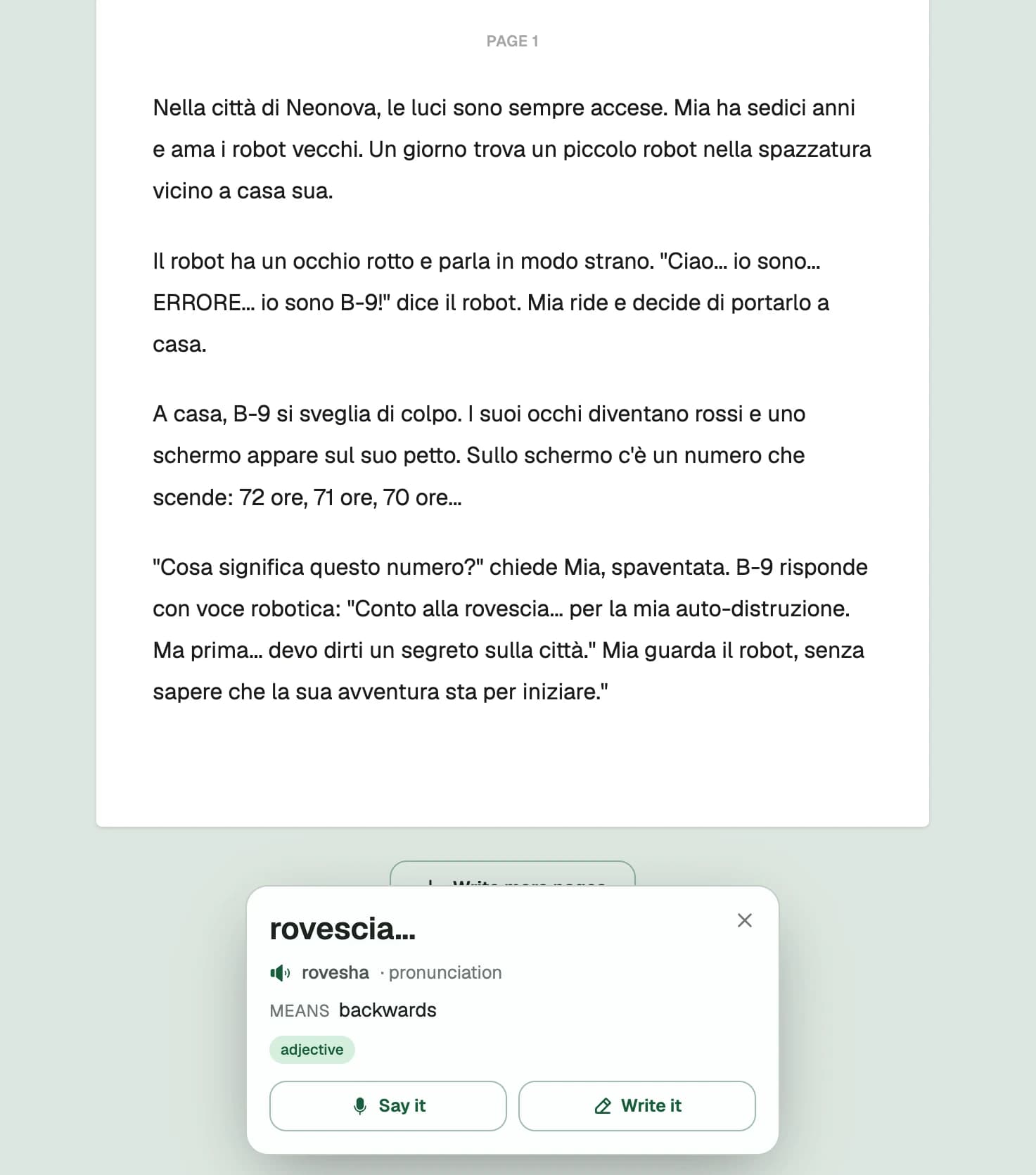
- 1Pick the language you're learning, your level (beginner, intermediate, advanced), how many pages to start with, and optionally up to 3 genre or franchise-inspired themes to mash up into a unique story.
- 2Read normally, or switch to Guided View to step through one panel at a time, full screen.
- 3Tap any word in a speech bubble to open its dictionary card.
- 4Tap “Generate more pages” whenever you finish, to keep the same story going.
Whole-page translate
One tap swaps the entire page between the original language and English, so you can check your understanding of a whole page at once.
Real pronunciation
Every tapped word plays real text-to-speech audio in that language, not just a romanized spelling to sound out yourself.
Practice speaking & writing
From a word's dictionary card, jump straight into a speaking or writing practice prompt built around that word.
Example sentences
Each dictionary card includes a real example sentence, itself tappable word-by-word.
Notebook
A page-based notebook you write and draw on directly — like a physical notebook, not a text document. Take handwritten notes, mark up a real PDF, or work a problem out by hand.
Pen, highlighter & eraser
Write and draw with a pressure-shaped pen or a wide translucent highlighter, and erase or lasso-select ink to move, resize, or delete a whole stroke group at once.
Import a real PDF
Bring in an existing PDF and it becomes the page itself — a genuine, selectable text layer underneath, not a flattened image. Write on top of it, highlight the actual text, and it stays crisp at any zoom.
Text, sticky notes & images
Drop in typed text boxes, sticky notes, and images anywhere on the page alongside your handwriting.
Export back to PDF
Export any notebook as a real PDF — everything you wrote, drew, or imported, printed to a document you can save or share.
Every notebook autosaves as you work and is reachable from the Library. Imported PDFs and images sync across your devices too — open the same notebook somewhere else and the file is fetched automatically, no need to re-import it.
Study Tools
Timers and stopwatches for focused study sessions, each saved as a live card you can start, pause, or reset right from the grid — or open full screen while you work.
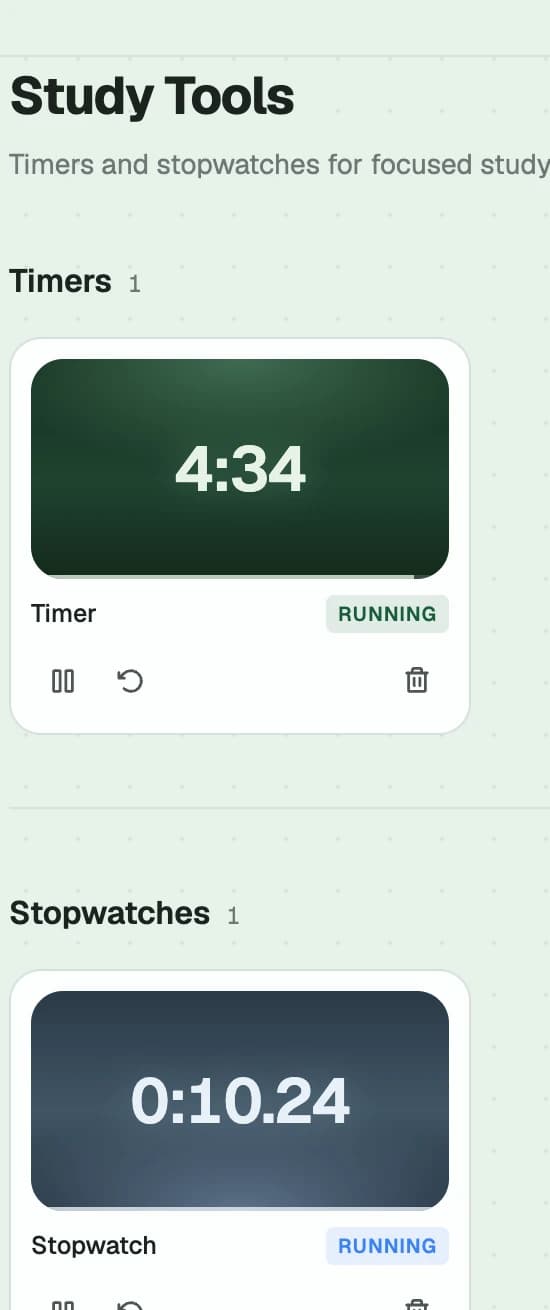
Timers
Count down a focus block (a Pomodoro-style sprint, an exam-length practice run, anything with a set length) with a chime when it hits zero.
Stopwatches
Time how long something actually takes — a practice test, a single problem set — with no preset length.
Each one can use any of five clock faces — Digital, Analog, Ring, Flip, or Neon — and every timer and stopwatch you create stays on this tab, so your setup is exactly where you left it next time.
Library
Where everything you build ends up — study decks, courses you're partway through, and notebooks — organized into folders you create, sorted however you like.
Folders
Group decks however makes sense to you — by class, by unit, by exam — and it's all reachable from the sidebar too, not just Library.
Sorting
Sort by last opened, date created, or name, so a big library stays navigable instead of turning into a flat pile.
Usage & points
Every feature and every model is unlocked for every account right now. Usage is tracked in points, an internal unit, and shown to you only as a percentage used so far.
Every account gets 60 points a day, shared across chat, lessons, courses, study kits, manga, and images. This is the same allowance for everyone — there's nothing to compare or upgrade to.
What a point actually costs, and roughly how many tokens that is
A point is not a literal token count — it's a rough dollar-cost proxy, calibrated so 1 point ≈ $0.01 of real AI-model spend at typical (not worst-case) usage. There's no single fixed tokens-per-point number, because our primary model prices input and output tokens differently (Claude Opus: $5 per 1M input tokens, $25 per 1M output tokens) and a point is a cost budget, not a token budget — so each row below shows a range: the low end assumes the spend was mostly output (the common case for a generation like a reply or a lesson, since output costs 5x more per token), the high end assumes it was mostly input (for example, a long document you attached). Every feature named in this guide, in the order it appears above:
| Feature | ≈ Tokens | Points |
|---|---|---|
| Chat — asking a question (a full explanation) | 6,000 – 30,000 | 15 |
| Chat — mind map | 400 – 2,000 | 1 |
| Chat — document attachment | 400 – 2,000 | 1 |
| Study kit — Guide / Worksheet / Flashcards / Quiz (build or edit) | 2,000 – 10,000 | 5 |
| Study kit — Blurting (grading a recall attempt) | 1,200 – 6,000 | 3 |
| Course — diagnostic placement | 1,200 – 6,000 | 3 |
| Course — full curriculum build | 6,000 – 30,000 | 15 |
| Course — coding gate check | 1,200 – 6,000 | 3 |
| Course — docked AI helper reply | 800 – 4,000 | 2 |
| Course — active-recall review session | 1,200 – 6,000 | 3 |
| Manga — one page's story text | 1,600 – 8,000 / page | 4 / page |
| Manga — one panel illustration | flat $0.01, not token-metered | 1 / panel |
Notebook, Study Tools (timers & stopwatches), and Library don't call an AI model, so they never spend usage.
Putting the same per-point range on the daily allowances (order-of-magnitude, not exact):
| Plan | Points / day | ≈ Tokens / day |
|---|---|---|
| Every account | 60 | ≈ 24,000 – 120,000 |
We show usage as a percentage, not a raw point or token count, because points are an internal accounting unit — the number that actually matters to you is how much of today you have left, and that's exactly what the usage ring in the top right of the app shows.
Account & data
A quick reference for account-level questions.
Signing in
Sign in with Google from the sidebar. We only receive your basic profile (name, email, photo) — never your Google password.
When your usage resets
24 hours after your account was created, not at a fixed clock time — so your reset always lands at the same time of day for you.
Where your work lives
Everything you build is tied to your account and synced, so it's there on any device you sign into.
Deleting your account
Settings → Profile → Delete account. This permanently removes everything — it cannot be undone.
Full detail on what we collect and why: Privacy Policy. The rules for using the app: Terms & Conditions.